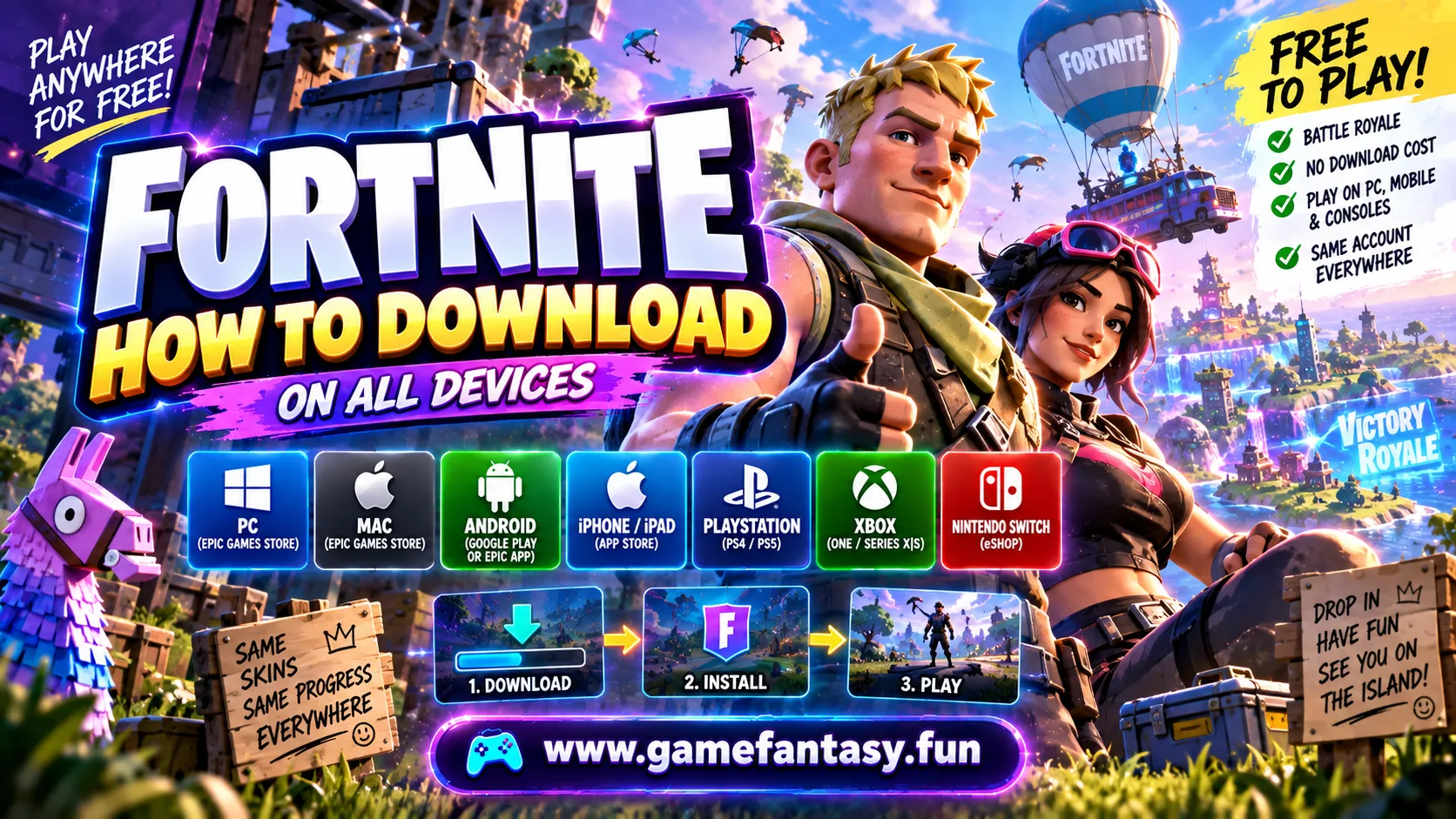
Fortnite has been through more platform drama than most games ever will. It got pulled from app stores, came back, got pulled again, and by the middle of 2026 it's finally sitting back where most people expect to find it: the App Store, Google Play, the Epic Games Store, and every major console storefront. If you've tried to install it in the last couple of years and hit a dead end, that's probably why. The good news is that as of now, getting it running on almost any device is close to as simple as downloading any other app. Here's exactly how, broken down by platform, along with what actually costs money and what doesn't.
Quick answer before the details: Fortnite itself is completely free. You never pay to download it or to play Battle Royale. The only paid parts are cosmetic skins, the Battle Pass, and V-Bucks, none of which are required to play a single match.
| Platform | Where to get it | Approx. download size | Cost to download |
|---|---|---|---|
| Windows PC | Epic Games Store (epicgames.com) | 25 to 30 GB | Free |
| Mac | Epic Games Store | 25 to 30 GB | Free |
| Android | Google Play or Epic Games App | 15 to 20 GB | Free |
| iPhone / iPad | App Store (most regions) | 15 to 20 GB | Free |
| PlayStation 4 / 5 | PlayStation Store | 25 to 30 GB | Free |
| Xbox One / Series X|S | Microsoft Store | 25 to 30 GB | Free |
| Nintendo Switch | Nintendo eShop | 13 to 15 GB | Free |
Fortnite on Windows or Mac runs through the Epic Games Store rather than Steam, since Epic is the publisher.
- Go to epicgames.com and click the download button for the Epic Games Launcher.
- Run the installer and sign in with an Epic account, or create one if you don't already have it.
- Search for Fortnite inside the launcher and click Install.
- Wait for the download, then click Play once it finishes.
The install itself is quick. It's the actual game files that take a while, so this is a good moment to start something else in another tab while it downloads in the background.
If you're not sure your PC can run it, the minimum requirements are modest by modern standards:
- OS: Windows 10 64-bit or newer
- CPU: Core i3 or equivalent
- RAM: 8 GB
- GPU: Intel HD 4000 or better for the lowest settings, though a dedicated graphics card is strongly recommended for a smoother frame rate
- Storage: at least 30 GB free, since updates tend to add to the base install size over time
Downloading Fortnite on Android
Android has two legitimate routes, and it doesn't really matter which one you pick.
- Google Play: search for Fortnite and install it exactly like any other app. This route came back in March 2026 after a policy change from Google, so it's the simplest option for most Android users now.
- Epic Games App: download the Epic Games App directly from epicgames.com, install it, then use it to install Fortnite. This was the only working method for a while and still works fine if you'd rather not go through Google Play.
Either way, make sure you have at least 20 GB of free storage before you start, since a stalled install partway through usually means running out of space, not a broken download.
Downloading Fortnite on iPhone and iPad
This is the platform that's changed the most. After roughly five years of being pulled from Apple's App Store over a payment dispute between Epic and Apple, Fortnite returned to the US App Store in 2025 and expanded to nearly every region worldwide by May 2026, with Australia as the one lingering exception at the time of writing.
If you're in a supported region, installing it is exactly like installing any other iPhone game: search for it in the App Store, tap Get, and confirm with Face ID or your Apple ID password. If a search doesn't turn it up, it usually means either your region isn't covered yet or your App Store account needs to be signed in with a country where it's live. In that case, cloud gaming through Xbox Cloud Gaming or GeForce Now still works as a backup, letting you stream the game without installing anything locally.
Downloading Fortnite on PlayStation, Xbox and Switch
Consoles are the most straightforward of the bunch, since there's no publisher-specific launcher involved.
- PlayStation 4 or 5: open the PlayStation Store, search Fortnite, and select Download. It installs like any other digital title.
- Xbox One or Series X|S: open the Microsoft Store from the dashboard, search Fortnite, and select Install.
- Nintendo Switch: open the Nintendo eShop, search Fortnite, and download it directly to your console's storage or a microSD card if you're low on space.
All three will ask you to sign in with an Epic account the first time you launch the game, which is also what links your progress and purchases if you ever play on a different platform later.
Before you install, worth knowing
- Fortnite is always free through the official storefronts above. Any site charging money just to download it is not legitimate.
- Your Epic account is what carries your skins, V-Bucks, and progress between platforms, not the platform account itself.
- Age ratings vary by game mode inside Fortnite, so it's worth checking which modes are appropriate if you're setting this up for a younger player.
Keeping your progress across platforms
One thing worth setting up correctly from the start is cross-progression. Fortnite ties your skins, Battle Pass level, and most purchases to your Epic account rather than to any single console or store, which is what lets you play on a PC in the morning and switch to a phone or console later without losing anything. The one exception is V-Bucks bought on Nintendo Switch, which Epic keeps separate from other platforms and the web shop, so it's worth buying V-Bucks on whichever platform you play most rather than assuming they'll follow you everywhere.
What to do while it downloads
A 20 to 30 GB download can take anywhere from a few minutes to well over an hour depending on your connection, and there's no real way to speed that up beyond using a wired connection instead of Wi-Fi if your setup allows it. If you want something to fill the wait without opening a whole separate app, a quick browser shooter like Radius Raid or Zombie Shooter is a reasonable way to warm up your reflexes before your first match, since both run instantly in a browser tab with nothing to install.
Once the download finishes, the first launch usually takes a little longer than normal while the game verifies files and applies any pending updates, so don't be surprised if Play doesn't drop you straight into a match the very first time.
If the install gets stuck
A handful of issues cover most download problems people run into:
- Download frozen at a specific percentage: close the launcher completely, wait about thirty seconds, and reopen it. This clears most stalls without needing to restart the whole download.
- "Not enough space" error despite having free storage: the launcher usually needs extra temporary space during installation, not just the final file size, so clearing a bit more than the listed requirement helps.
- Game won't launch after installing: right-click Fortnite in the launcher and choose Verify, which checks for and repairs any corrupted files automatically.
- Can't find Fortnite in your region's app store: this almost always means the storefront hasn't rolled it out to that country yet rather than an issue on your end, and cloud gaming remains a working fallback in the meantime.